


With the arrival of Windows 8, Microsoft hasn't just given their most
popular software product a fresh coat of paint - they've completely
torn it down to the foundation and rebuilt it as something brand new.
Windows 8 is aesthetically pleasing and downright fluid, but it can also
be vague. Regardless of how familiar you are with other platforms or
even older versions of Windows, there is a learning curve to Windows 8.
Fortunately, there are a few easy steps you can take to ease your transition to Windows 8. Five of our favorite tips are listed below, and should make it easy to convert over no matter what you're used to.

If you're just upgrading your computer then this doesn't apply, but if you're in the market for new hardware then this absolutely must be pointed out. Windows 8 is built with touchscreens in mind. While using a keyboard and mouse doesn't cause the user experience to completely collapse, it does make it feel a little more indirect. With a tablet, you'll be able to take advantage of all of the extra mobility and flexibility that Windows 8 offers.

With the industry fast transitioning to cloud computing, every major
tech company has unveiled a cloud-based solution. While Microsoft may
have been late to the party in other areas, it has managed to leapfrog
the competition with its SkyDrive offering. SkyDrive lets you sync up
photos, music, documents and more between your Windows 8 devices. Even
better, there is a SkyDrive app available for both iOS and Android - so
if you still aren't carrying a Windows 8 smartphone, you'll be able to
sync SkyDrive up with your mobile devices.
Fortunately, there are a few easy steps you can take to ease your transition to Windows 8. Five of our favorite tips are listed below, and should make it easy to convert over no matter what you're used to.
Go For the Tablet
If you're just upgrading your computer then this doesn't apply, but if you're in the market for new hardware then this absolutely must be pointed out. Windows 8 is built with touchscreens in mind. While using a keyboard and mouse doesn't cause the user experience to completely collapse, it does make it feel a little more indirect. With a tablet, you'll be able to take advantage of all of the extra mobility and flexibility that Windows 8 offers.
Familiarize Yourself With Shortcuts

In a situation where you're simply upgrading your laptop or desktop to Windows 8 and aren't buying new hardware, this is the best way to ease the transition. Learn all of the shortcuts, such as hovering over the corners of the screen to trigger different functions. This will make your day-to-day life with Windows 8 much smoother.
Check Out The Apps

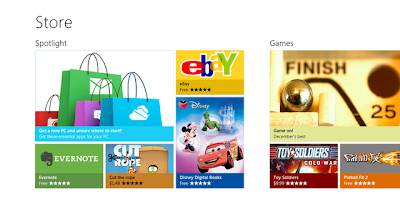
The traditional Windows experience has never been app-driven. Sure, Windows devices have always been great for running full software packages, but apps always seemed redundant in the face of full-fledged websites and software suites. The tide has shifted over the last several years, though, and developers now place more emphasis on apps than they do other methods of consumption. Add in the fact that apps are more compact and often present information in a format that's easier to digest, and you have all the reason you need to visit the Windows app store. If nothing else, you'll find at least one or two that hold your attention.
Utilize SkyDrive


