The Tech Addas

The Tech Addas
Subscribe For Free Updates!

We'll not spam mate! We promise.

Showing posts with label Windows Tips and Tricks. Show all posts

Thursday, 13 June 2013

[How-To]Easily Enable/Disable Registry Editor(regedit) in Windows XP/7/8

Hello Folks we are back with next post in this series Easily Enable/Disable some important utilities of Windows System. previously we discussed of [How-To] Enable/Disable Task Manager in Windows XP/7/8 So Continuing further now we'll see how to enable/disable registry editor(regedit) with ease. 

Registry Editor:
                           "Registry Editor deals with the "Registry, which  contains information that Windows continually references during operation, such as profiles for each user, the applications installed on the computer and the types of documents that each can create, property sheet settings for folders and application icons, what hardware exists on the system, and the ports that are being used" - Microsoft .
                            
                           Most of the time this utility is disabled by Administrator/Malware(Virus) so as to limit your control over the system. No worries In this problem you will get an idea to get rid off this problem

For this we'll be using local group policy editor make sure that you have administrative privilege because we gonna need that now.

Step 1: Press "Win + R" or from start menu just click on "RUN". 
               
Run dailogue box windows 8

Step 2: Type in "gpedit.msc" and press ENTER key.
                           
gpedit.msc


Step 3: After hitting ENTER key or clicking OK you would see "Local Group Policy Editor"window.

Local Group Policy Editor in Windows XP/7/8


Step 4: Then in the left pane navigate to these location "User Configuration > Administrative Template > System "
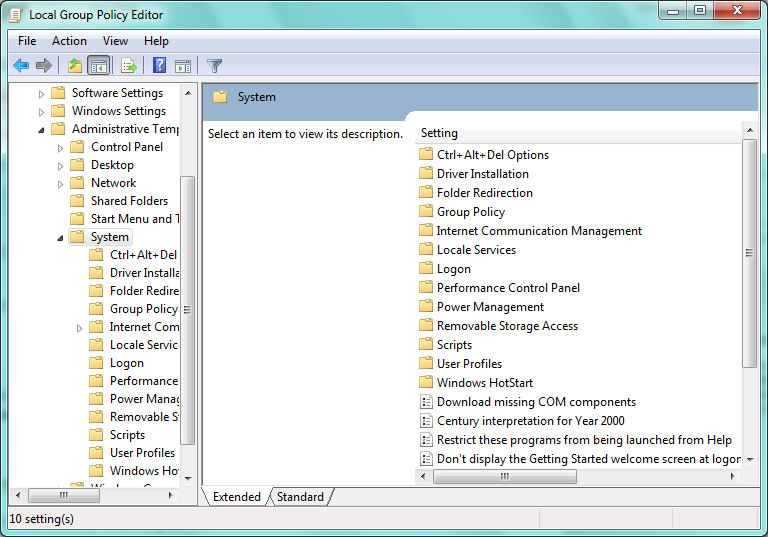
                                      
Enable/Disbale Registry Editor Disabled by Administrator/Virus
  
 
         There in the right pane find option named "prevent access to registry editing tool" open it.

Step 5:  You would see something like this
                           
prevent access to registry editing tool
        
   
   Now to Enable Registry Editing Tool : Just select "Disabled " radio button and click "OK".
                Disable Registry Editing Tool: Just select "Enabled" radio button and click "OK".
   don't confuse with option

Done you just have learnt to Enable/Disable Registry Editing Tool with ease. Hope you liked post .
If you find useful please do share it with your friends too

Please do provide your valuable responses/queries for this post . Stay tuned The Tech Addas for more how-to guides.

Tuesday, 4 June 2013

[How-To] Enable/Disable Task Manager in Windows XP/7/8

Hello Folks , As our niche is Android, Windows Tips and Tricks, Cloud Computing and Cyber Security. Today we are going to post an article on how to enable/disable task manager ,  Personally i faced this problem in enabling task manger in  my PC and then had to do little bit google for it , so  thought of making it available here for you.

Let' s Begin, 


Step 1: Press these keys " Windows + R" pr select "run" from start menu , these will invoke Run dialogue box.


Run dailogue box


Step 2: In Run dialogue box type "gpedit.msc" without quotes and click on "OK", these would invoke Group Policy Editor (It is used to define user and computer configuration for group of user or computer).


Group Policy Editor

 Step 3: There you would find "Computer Configuration " and "User Configuration" in Left Pane.

            Navigate to These path :

            User Configuration -> Administrative Templates -> System -> Ctrl+Alt+Del 


 Step 4: Now In " Ctrl+Alt+Del option , you'll find "Remove Task Manager" open it.

             
Enable/Disable Task Manager using gpedit.msc detailed

             Now to  Enable Task Manager:  select "Disabled " radio button
                           Disable Task Manager: select "Enabled " radio button 
             and click "OK". and close Group Policy Editor you will see effect immediately. 


Hope the post was helpful to you, If you like it please do share with your friends. and Stay Tuned to The Tech Addas for more updates 

Feel Free to Comment your Queries/Responses/Ideas.